

If you are using Angular Material, keep reading to learn about a very useful component: autocomplete. This is similar to the select HTML element, but it allows you to type your search and while narrowing the options down in real time.
Today we’ll do an example of a country calling code list:
Let’s get started!
Procedure
First let’s make sure we have the latest Node and npm installed on our system. Download them here:
- Node: https://nodejs.org/
- npm: https://www.npmjs.com/
Next we’ll set up our Angular project. Install the Angular CLI tool
npm install -g @angular/cli
Generate a new project
ng new code-autocomplete
Change to the directory of the newly-created project
cd code-autocomplete
Add Angular Material
ng add @angular/material
Run the local dev server
ng serve
Check localhost:4200 in your browser
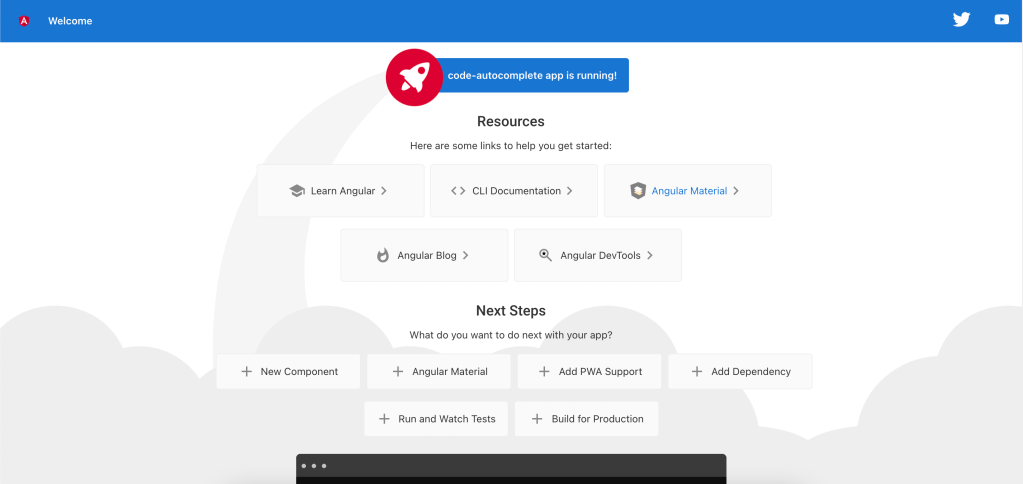
We will use a few components to create the desired feature, so let’s import the necessary Angular Material modules.
app.module.ts
import { NgModule } from '@angular/core';
import { ReactiveFormsModule } from '@angular/forms';
import { MatAutocompleteModule } from '@angular/material/autocomplete';
import { MatFormFieldModule } from '@angular/material/form-field';
import { MatInputModule } from '@angular/material/input';
import { BrowserModule } from '@angular/platform-browser';
import { NoopAnimationsModule } from '@angular/platform-browser/animations';
import { AppComponent } from './app.component';

@NgModule({
  declarations: [
    AppComponent
  ],
  imports: [
    BrowserModule,
    ReactiveFormsModule,
    NoopAnimationsModule,
    MatAutocompleteModule,
    MatFormFieldModule,
    MatInputModule
  ],
  providers: [],
  bootstrap: [AppComponent]
})
export class AppModule { }
Now let’s add the template:
app.component.html
<form>
  <mat-form-field appearance="fill">
    <mat-label>Country Code</mat-label>
    <input
      matInput
      aria-label="country"
      [matAutocomplete]="auto"
      [formControl]="countryCtrl"
    />
    <mat-autocomplete #auto="matAutocomplete">
      <mat-option
        *ngFor="let country of filteredCountries | async"
        [value]="country.name"
      >
        <img aria-hidden [src]="country.flag" />
        <span>{{ country.name }}</span>
        <small> (+{{ country.code }})</small>
      </mat-option>
    </mat-autocomplete>
  </mat-form-field>
</form>
Add the business logic for the data and filter function:
app.component.ts
import { Component } from '@angular/core';
import { FormControl } from '@angular/forms';
import { Observable } from 'rxjs';
import { map, startWith } from 'rxjs/operators';

export interface Country {
  flag: string;
  name: string;
  code: number;
}

@Component({
  selector: 'app-root',
  templateUrl: './app.component.html',
  styleUrls: ['./app.component.scss'],
})
export class AppComponent {
  countryCtrl = new FormControl();
  filteredCountries: Observable<Country[]>;

  countries: Country[] = [
    {
      name: 'England',
      code: 44,
      flag: 'https://upload.wikimedia.org/wikipedia/commons/8/83/Flag_of_the_United_Kingdom_%283-5%29.svg',
    },
    {
      name: 'France',
      code: 33,
      flag: 'https://upload.wikimedia.org/wikipedia/commons/1/1c/Flag_of_France_%28darker_version%29.svg',
    },
    {
      name: 'Gambia',
      code: 220,
      flag: 'https://upload.wikimedia.org/wikipedia/commons/7/77/Flag_of_The_Gambia.svg',
    },
    {
      name: 'Germany',
      code: 49,
      flag: 'https://upload.wikimedia.org/wikipedia/commons/b/ba/Flag_of_Germany.svg',
    },
    {
      name: 'Iceland',
      code: 354,
      flag: 'https://upload.wikimedia.org/wikipedia/commons/c/ce/Flag_of_Iceland.svg',
    },
    {
      name: 'Italy',
      code: 39,
      flag: 'https://upload.wikimedia.org/wikipedia/commons/0/03/Flag_of_Italy.svg',
    },
    {
      name: 'Netherlands',
      code: 31,
      flag: 'https://upload.wikimedia.org/wikipedia/commons/2/20/Flag_of_the_Netherlands.svg',
    },
    {
      name: 'Spain',
      code: 34,
      flag: 'https://upload.wikimedia.org/wikipedia/commons/7/7d/Flag_of_Spain_%281785%E2%80%931873%2C_1875%E2%80%931931%29.svg',
    },
  ];

  constructor() {
    this.filteredCountries = this.countryCtrl.valueChanges.pipe(
      startWith(''),
      map((state) =>
        state ? this._filterStates(state) : this.countries.slice()
      )
    );
  }

  private _filterStates(value: string): Country[] {
    const filterValue = value.toLowerCase();

    return this.countries.filter((country) =>
      country.name.toLowerCase().includes(filterValue)
    );
  }
}
…and finally add some style:
app.component.css
form {
  min-width: 150px;
  max-width: 500px;
  width: 100%;
}

mat-form-field {
  margin: 1rem;
}

img {
  vertical-align: middle;
  margin-right: 8px;
  width: 35px;
  height: 20px;
}
Here is the final result:






 The Computer Chick