
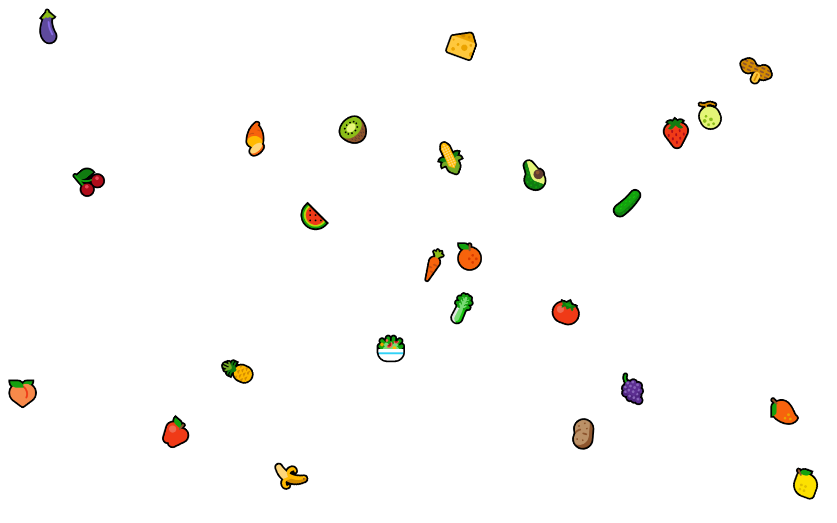
Did you know you can customize canvas confetti to use emojis? Read on to learn how the shapeFromText helper method works in the canvas-confetti npm package and implement an easy example.
Procedure
As in previous tutorials, let’s first install Node and npm:
- Node: https://nodejs.org/
- npm: https://www.npmjs.com/
Set up the Angular project by installing the Angular CLI tool:
npm install -g @angular/cliCreate a project called my-confetti-project:
ng new my-confetti-projectEnter the project directory:
cd my-confetti-projectRun the local development server:
ng serveCheck localhost:4200 in your browser:

Install canvas-confetti:
npm install --save canvas-confettiInstall the Types if using TypeScript:
npm i --save-dev @types/canvas-confettiWe want to click a button to trigger the confetti effect. A canvas HTML element will be generated which contains the confetti animation. For the sake of simplicity, we will use a boolean flag to hide the button once it has been clicked to prevent the user from creating multiple canvases.
We will use Angular’s Renderer2 class to create and attach the canvas element to our HTML template. The full API documentation for Renderer2 can be found here:
https://angular.dev/api/core/Renderer2
Finally, we’ll import the entire canvas-confetti module into our Angular application. Let’s make it accessible through a variable we’ll call confetti.
We can define custom confetti with the shapeFromText helper method. Here we will define vegetable emojis as the shapes which make up our confetti.
TypeScript:
import { CommonModule } from '@angular/common';
import { Component, ElementRef, Renderer2 } from '@angular/core';
import confetti from 'canvas-confetti';


@Component({
  selector: 'app-root',
  imports: [CommonModule],
  templateUrl: './app.component.html',
  styleUrl: './app.component.css',
})
export class AppComponent {
  public clicked = false;

  constructor(private renderer2: Renderer2, private elementRef: ElementRef) {}

  public surprise(): void {
    const canvas = this.renderer2.createElement('canvas');
    const myConfetti = confetti.create(canvas, {
      resize: true,
    });

    this.renderer2.appendChild(this.elementRef.nativeElement, canvas);

    let a = confetti.shapeFromText({ text: '🥦' });
    let b = confetti.shapeFromText({ text: '🥕' });
    let c = confetti.shapeFromText({ text: '🌽' });
    let d = confetti.shapeFromText({ text: '🧅' });
    let e = confetti.shapeFromText({ text: '🍅' });

    myConfetti({
      shapes: [a, b, c, d, e],
      scalar: 2.5
    });

    this.clicked = true;
  }
}
HTML:
<div class="container">
  <button *ngIf="!clicked" (click)="surprise()">Click</button>
</div>
CSS:
button {
    border: none;
    padding: 0.5rem;
    background: #e16a42;
    color: #f5f3e6;
    width: 200px;
    height: 50px;
    font-size: 21px;
    box-shadow: 0px 1px 4px 0px rgb(102, 90, 90);
    cursor: pointer;
  }

  canvas {
    height: 100%; /* we need these for full-screen effect */
    width: 100%;
  }

  .container {
    display: flex;
    justify-content: center;
  }

  canvas, .container {
    position: absolute;
    left: 50%;
    top: 50%;
    transform: translate(-50%,-50%)
  }
The final result will look like this:

 The Computer Chick
1 Comment