

When building a frontend application, it’s often helpful to use a component library. One of the most popular and comprehensive libraries out there is Angular Material. Today we’ll dive into the Angular Material Sidenav and implement some simple examples.
Procedure
First let’s make sure we have the latest Node and npm installed on our system. Download them here:
- Node: https://nodejs.org/
- npm: https://www.npmjs.com/
Next we’ll set up our Angular project. Install the Angular CLI tool
npm install -g @angular/cliGenerate a new project
ng new my-sidenavChange to the directory of the newly-created project
cd my-sidenavAdd Angular Material
ng add @angular/materialAdd Angular Animations, so that we can see the Sidenav in action
npm install --save @angular/animationsImport MatSidenavModule and CommonModule
import { CommonModule } from '@angular/common';
import { Component } from '@angular/core';
import { MatSidenavModule } from '@angular/material/sidenav';

@Component({
  selector: 'app-root',
  imports: [MatSidenavModule, CommonModule],
  templateUrl: './app.html',
  styleUrl: './app.css'
})
export class App {}
Basic Usage
Let’s set up a basic sidenav, or drawer
app.html
<mat-drawer-container class="example-container">
  <mat-drawer mode="side" opened>Drawer content</mat-drawer>
  <mat-drawer-content>Main content</mat-drawer-content>
</mat-drawer-container>
app.css
.example-container {
  width: auto;
  height: 200px;
  margin: 10px;
  border: 1px solid #555;
  background: #eee;
}
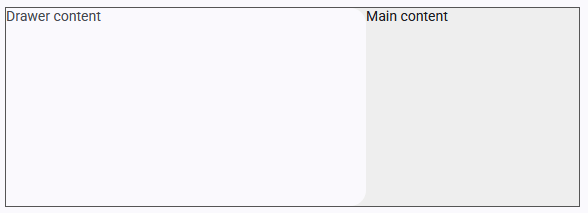
Check the browser for the result
Animated Sidenav
To toggle a sidenav, you’ll need the following code
app.ts
export class App {
  showFiller = false;
}
app.html
<mat-drawer-container class="example-container" autosize>
  <mat-drawer #drawer class="example-sidenav" mode="side">
    <p>Auto-resizing sidenav</p>
    @if (showFiller) {
      <p>Lorem, ipsum dolor sit amet consectetur.</p>
    }
  </mat-drawer>

  <div class="example-sidenav-content">
    <button type="button" (click)="drawer.toggle()">
      Toggle sidenav
    </button>
  </div>

</mat-drawer-container>
app.css
.example-container {
  width: 500px;
  height: 300px;
  border: 1px solid rgba(0, 0, 0, 0.5);
  background: #eee;
}

.example-sidenav-content {
  display: flex;
  height: 100%;
  align-items: center;
  justify-content: center;
}

.example-sidenav {
  padding: 20px;
}
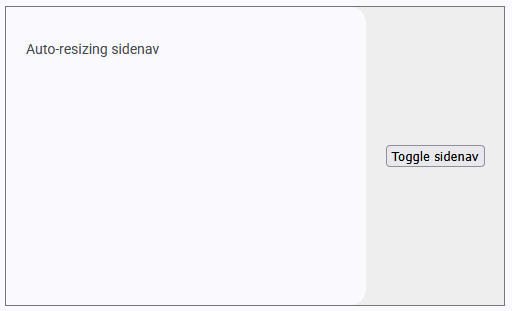
Now here is the result
Conclusion
We’ve learned about the Sidenav from Angular Material, and implemented a couple of simple examples. Now you can use it in your own projects. Happy Coding!

 The Computer Chick